What your crew, your site, and your clients actually get.
Three products, each wearing your brand. The crew app is the operational heart. The website is how you look in public. The portal is how your customers ask for staff.
Why Event Crew Desk
The night should not depend on a clipboard, a chat, and a Monday spreadsheet.
Paper sign-in sheet
A name on a clipboard
Arrival is a signature at the staff entrance. The sheet cannot tell you the person was still there at the end.
With Event Crew Desk
They scan the door sticker on the way in and on the way out, and only from inside the venue.
WhatsApp group
The rota is a thread
Who is on, who dropped, and which role still needs a person are buried in the chat.
With Event Crew Desk
Available shifts, open spots by role, and the jobs a person is already on, in the app.
Spreadsheet
Monday is typed back in
Hours, overtime, and the client invoice are rebuilt after the room is empty.
With Event Crew Desk
An admin checks the hours, approves any overtime, and payroll and invoices go out automatically.
Built from real events. Event Crew Desk was built and proven at a live events company in Ireland.
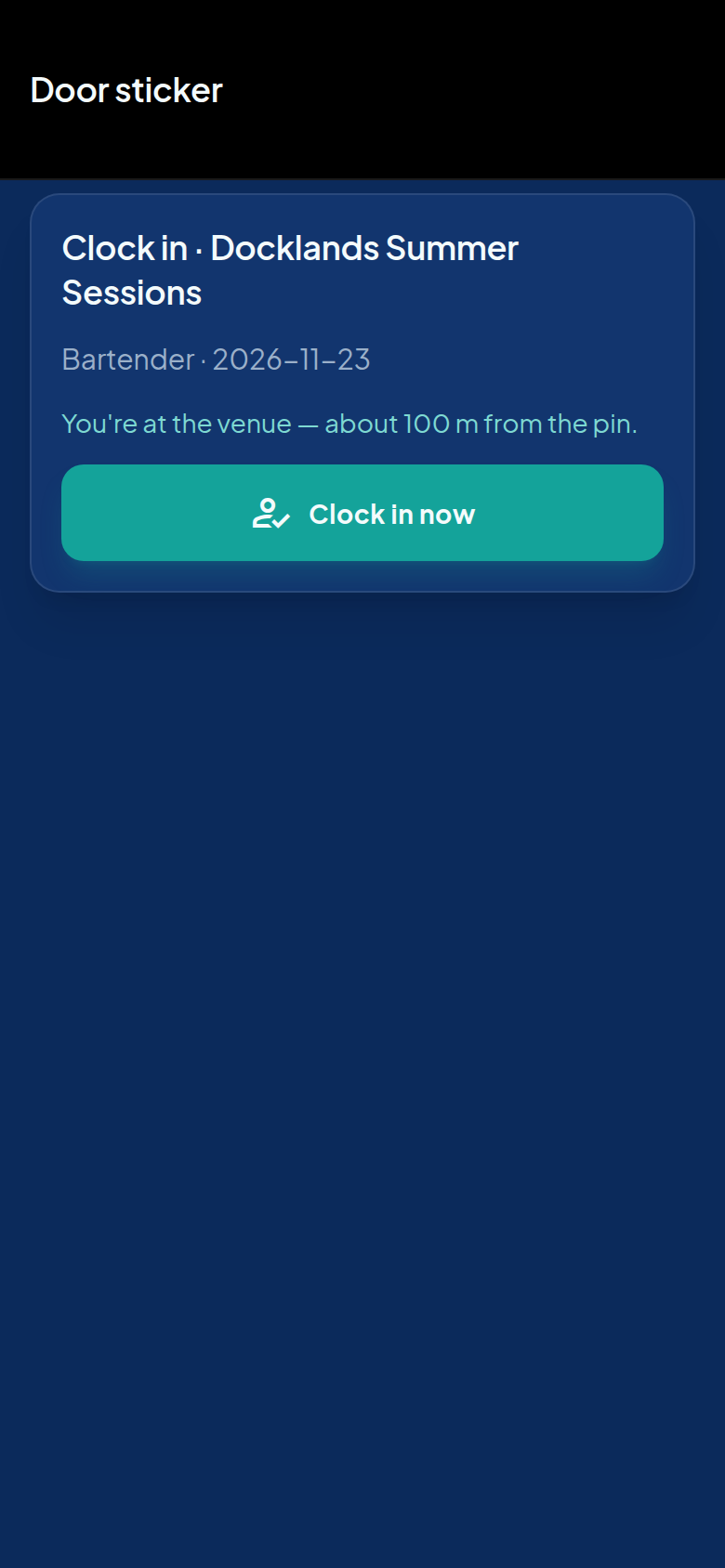
Geo-fenced clock-in
Clock in only when you are at the venue.
A crew member can clock in or out only when they are physically at the venue. The app checks the phone’s location against that venue’s radius. A clock-in from the bus, or a colleague punching someone in from across town, does not go through.
Clock-in and clock-out both require the person to be at the venue.
The check is the radius set for that venue.
An off-site clock-in is refused.
One person cannot clock a colleague in from somewhere else.
The door-sticker scan still happens at the staff entrance.
At the venue
Clock-in opens when the phone is inside the venue radius.
Scan the sticker
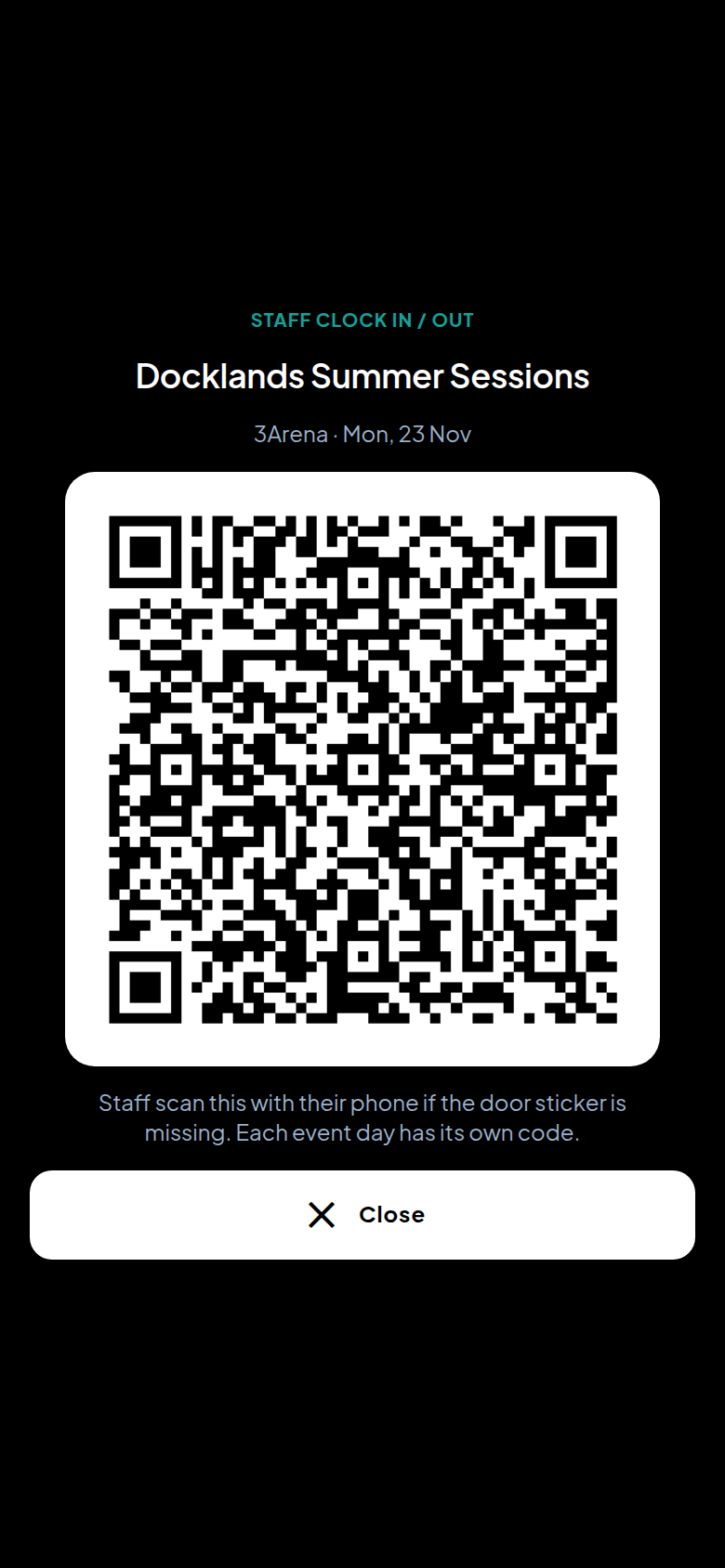
If the sticker is missing
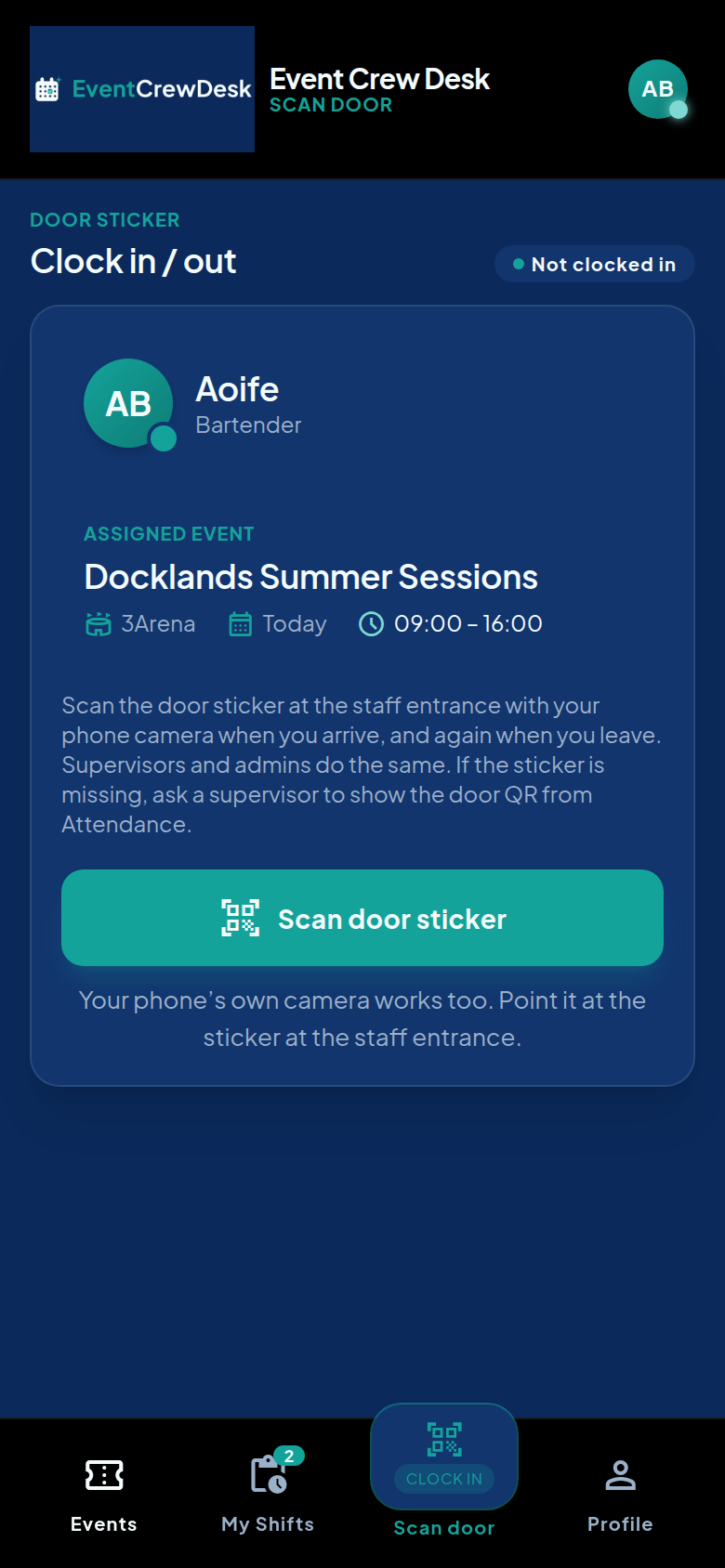
QR clock-in
Scan the door sticker when you arrive, and again when you leave.
At the staff entrance, crew open the app and scan the QR door sticker with their phone. They scan again on the way out. Supervisors and admins clock in the same way. If the sticker is missing, a supervisor shows the door QR from the Attendance screen, and staff scan that with their phone. Each event day has its own code.
Scan the sticker at the staff entrance on arrival, and again when leaving.
The phone’s own camera can read the sticker.
Supervisors and admins use the same scan.
If the sticker is missing, Attendance shows that day’s door QR.
Each event day has its own code.
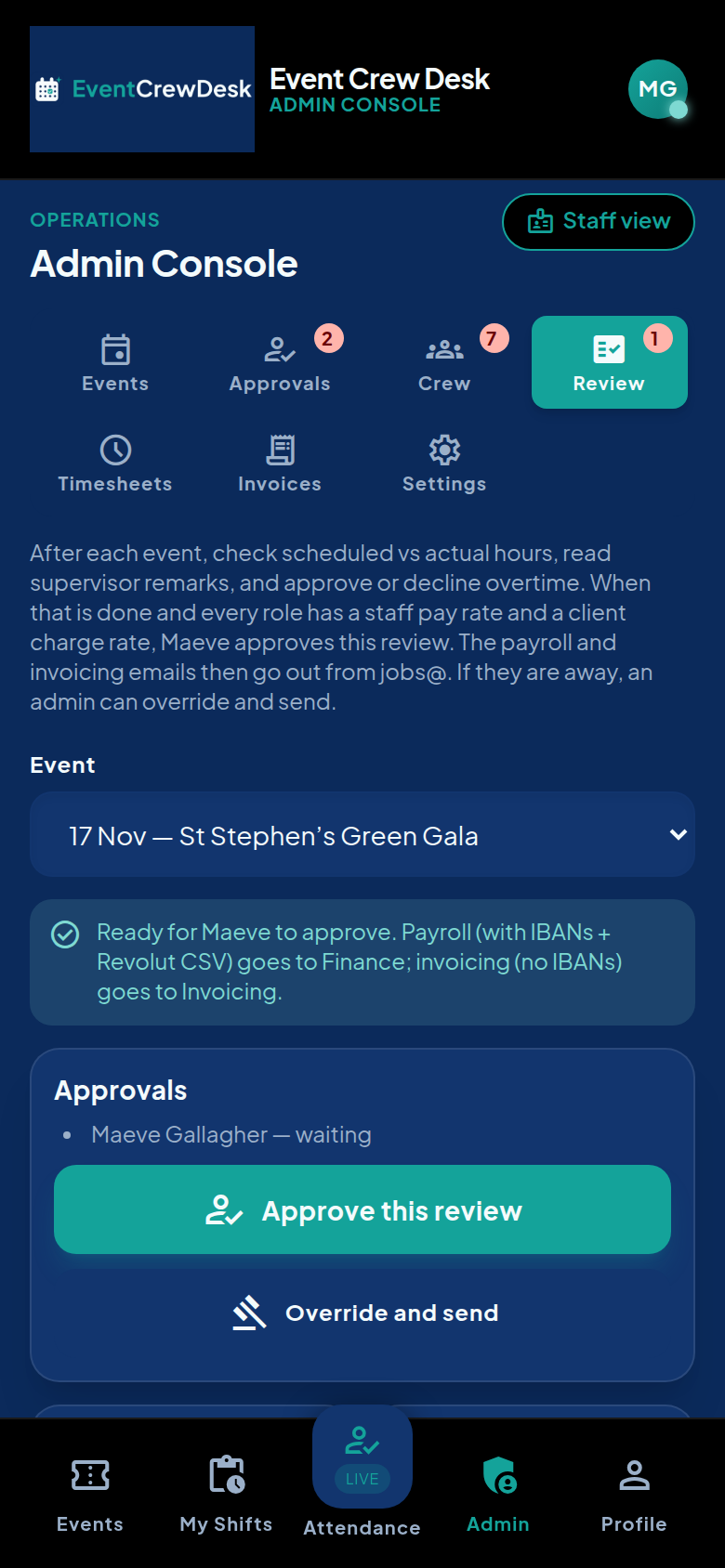
Pay review
An admin checks the hours. Then payroll and invoices go out.
After each event an admin checks the hours and approves any overtime before it goes to payroll. Payroll and invoices then go out automatically.
Scheduled hours sit beside the hours actually worked.
Supervisor remarks are part of the review.
Overtime is approved before the hours go to payroll.
Each role shows a staff pay rate and a client charge.
Payroll and invoices then go out automatically.
Admin review
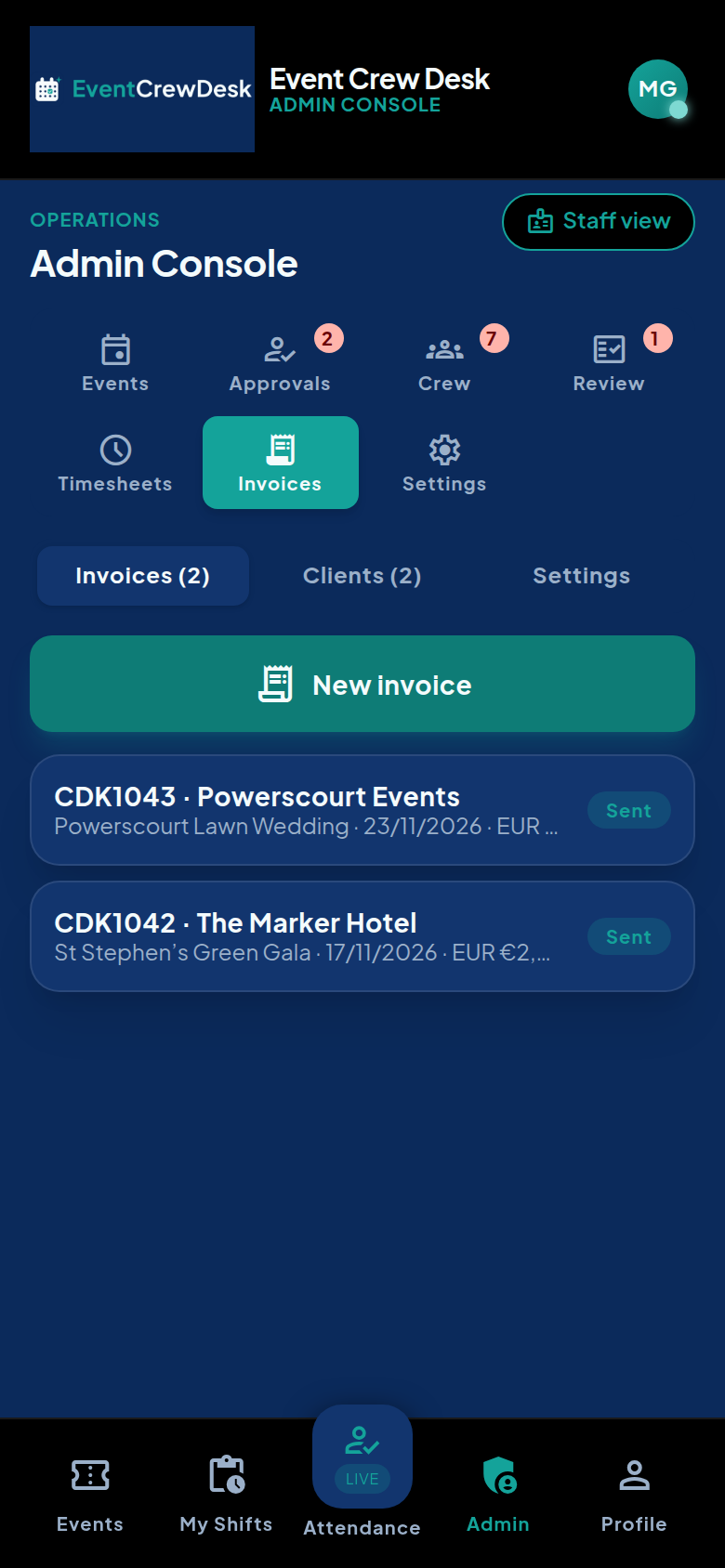
Invoices
Invoicing
An invoice for the event, numbered, and marked sent.
Invoices are raised from the event and listed in the admin console against the client, the date, and the amount. Each one takes the next number in the sequence. On these screens they read CDK1042 and CDK1043, and both are marked sent. After the hours are approved, payroll and invoices go out automatically.
The invoice is tied to the event and the client.
Numbers run in sequence.
Sent invoices are marked on the list.
A new invoice starts from the same screen.
Payroll and the invoice go out automatically.
Events and shifts
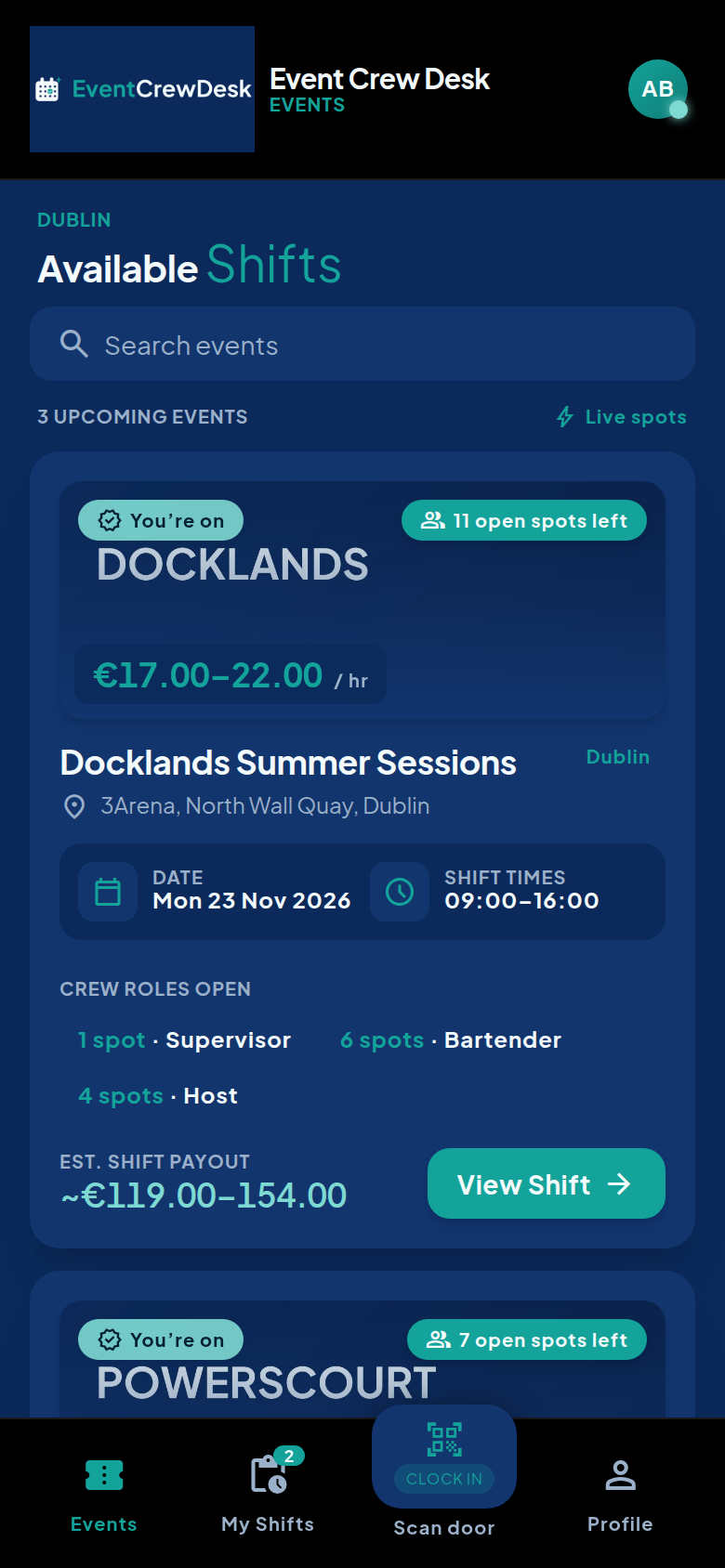
Available shifts, open spots, and the jobs you’re already on.
You publish the event with its venue, date, shift times, and the roles that still need people. Crew open Available Shifts, search the list, and see the spots left — supervisor, bartender, host, or the roles you name. A shift they are already on is marked. The card shows the hourly rate and an estimated payout for the shift.
Create the event with venue, date, and shift times.
Open spots are listed by role.
Crew sign up from the app.
A shift they are already on is marked “You’re on”.
The card shows the rate and an estimated shift payout.
Available shifts
IdentityChecked for this country
AddressChecked for this country
BankHeld with the starter form
Illustration. Documents stay in the app.
Onboarding
Sign up in the app, with the checks that country needs.
New crew join in the app and add their bank details. Identity and address are validated for the country they are in. The documents are stored securely with that starter record.
Sign-up happens in the app.
Bank details are collected there.
Identity is validated for that country.
Address is validated for that country.
Documents are stored securely.
1 · ReviewAn admin approves each new person
2 · Home countyThey see and apply locally
3 · Further afieldYou can open other counties
How shift access is granted.
Vetting and regions
Vetted crew, local by default.
Every new crew member is reviewed and approved by an admin before they can apply for any shift. Once approved, they see and apply for events in their own county or region. When a job needs that person somewhere else, an admin can grant them access to other counties. You keep a vetted workforce, local crew on every event, and full control of who travels.
A new crew member cannot apply for shifts until an admin has approved them.
That approval is what opens the shift list for that person.
Approved crew see events in their own county or region.
They apply for those local events.
An admin can grant one person access to other counties when you need them there.
Client portal · included with the Complete Package
Clients request the people, the hours, and the dates.
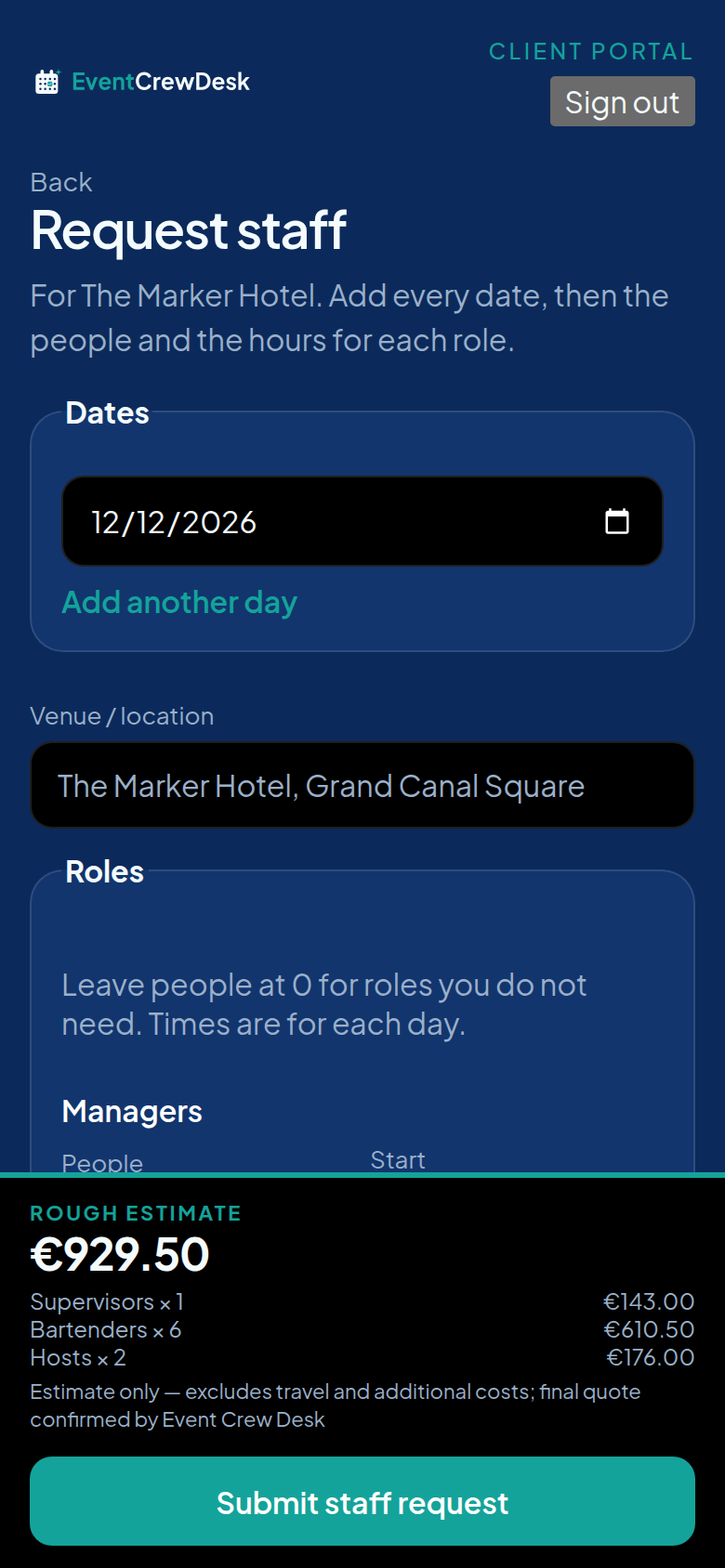
A client opens the portal and requests staff for a venue. They add each date, then the people and the hours for every role. Roles they do not need stay at zero. They see a rough estimate before they submit. Travel and extra costs sit outside that estimate, and your desk confirms the final quote. From the same portal they follow the events they have booked and the invoices you send.
Request staff by date, role, people, and hours.
Add another day without starting again.
A rough estimate before the request is submitted.
Travel and additional costs are excluded from the estimate.
Your desk confirms the final quote. They can follow the event and the invoice.
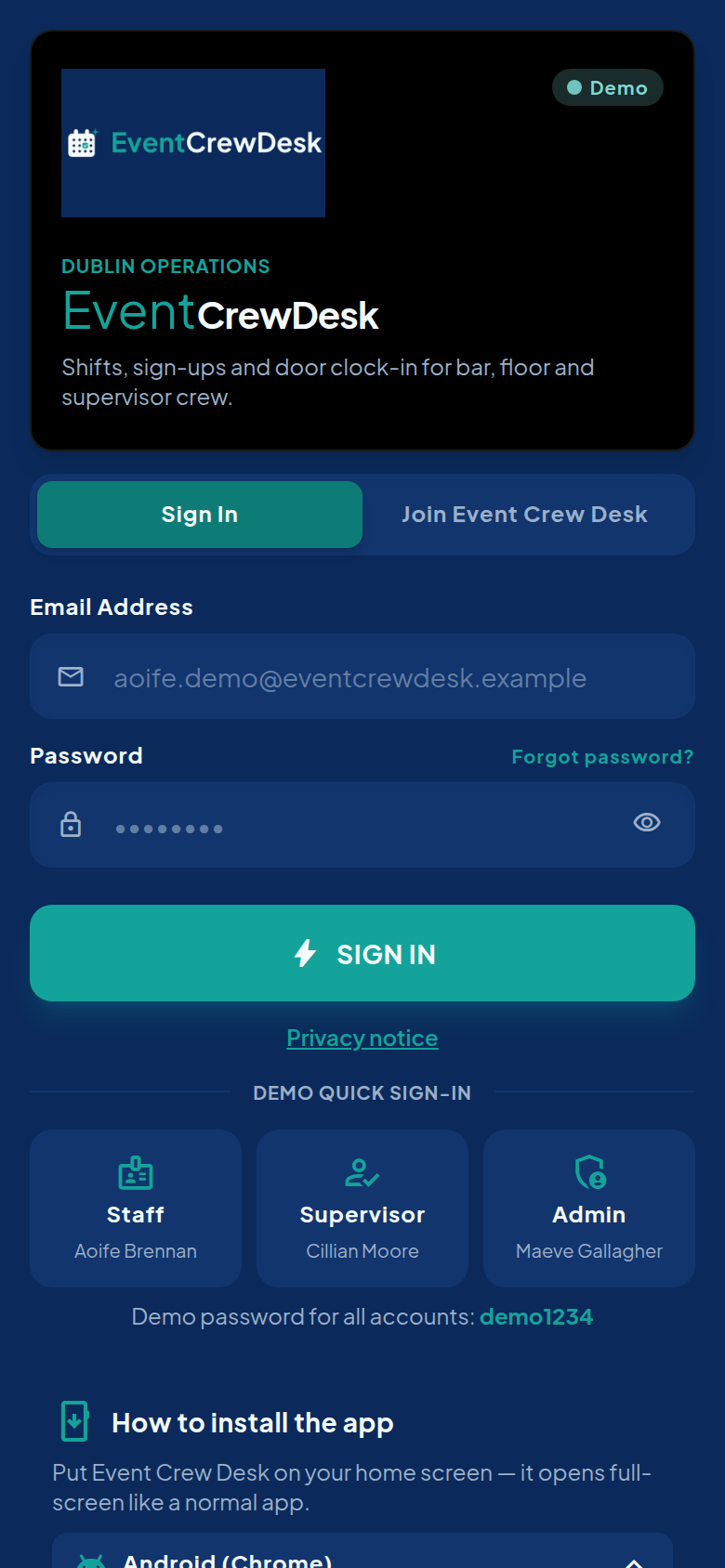
Crew use the phone they already have. From the sign-in screen they put Event Crew Desk on the home screen, and it opens full-screen the way a normal app does. There is no app-store listing to maintain. The icon and the colours are yours. On these screens they belong to Event Crew Desk, for Dublin Operations, with separate sign-in for staff, supervisors, and admins.
Works on any phone, from the browser.
Add to the home screen from the sign-in page.
Opens full-screen.
Nothing to ship through an app store.
Your logo and colours. Staff, supervisor, and admin each sign in.
White-label
Your name on the app, and on the emails.
The installation carries the buyer’s name, logo, colours, and email addresses. It runs on that business’s own private system. The screens on this page show the product before it wears your brand.
Your name, logo, and colours replace the sample brand.
Emails go out from addresses you provide.
The system is private to your business.
Crew, supervisors, and admins sign in to your installation.
The app, the website, and the portal agree with each other.
North Hall
Navy and teal
Field & Co
Teal on white
Illustration of two buyer brands. The phones above show the product with sample branding.
Website + Client Portal
A public site that already has a point of view.
The one-off Complete Package includes a custom website free. Bold Night, Clean Corporate, Festival, and Minimal are starting points, set in your branding, photographs, and copy.
On Starter, Growth, and Enterprise, Website + Portal is €99/month. Unlimited includes it. A different custom design on a monthly plan is priced on request.